Sell Digital Downloads on WordPress: Performance Guide Web Hosting Promo Codes
Performance gets practical when digital storefronts prioritize latency and server efficiency over unnecessary features. Many creators launch digital stores on WordPress only to face slow page loads, database bloat, and failed transaction emails. These issues often stem from heavy e-commerce frameworks that run complex database queries for simple file delivery tasks. When a visitor attempts to purchase a digital asset, every millisecond of delay in the payment gateway handshake or file delivery pipeline increases checkout abandonment.
To build an efficient store, you need a lightweight infrastructure that separates transaction processing from local server resources. Easy Digital Downloads provides this foundation by focusing strictly on digital assets. By offloading payment processing to external gateways like Stripe and PayPal, you protect customer data and reduce local CPU load. Furthermore, routing transactional emails through dedicated SMTP services prevents delivery failures, ensuring customers receive their download links instantly.
This guide outlines the technical steps to configure a high-performance digital download store on WordPress. We will address database optimization during setup, secure payment routing, file delivery configurations that bypass local hosting limits, and sandbox testing. Optimizing these infrastructure layers ensures your site remains fast, secure, and capable of handling high traffic without performance degradation.
Infrastructure Choice: Easy Digital Downloads Setup
Plugin Installation and Licensing
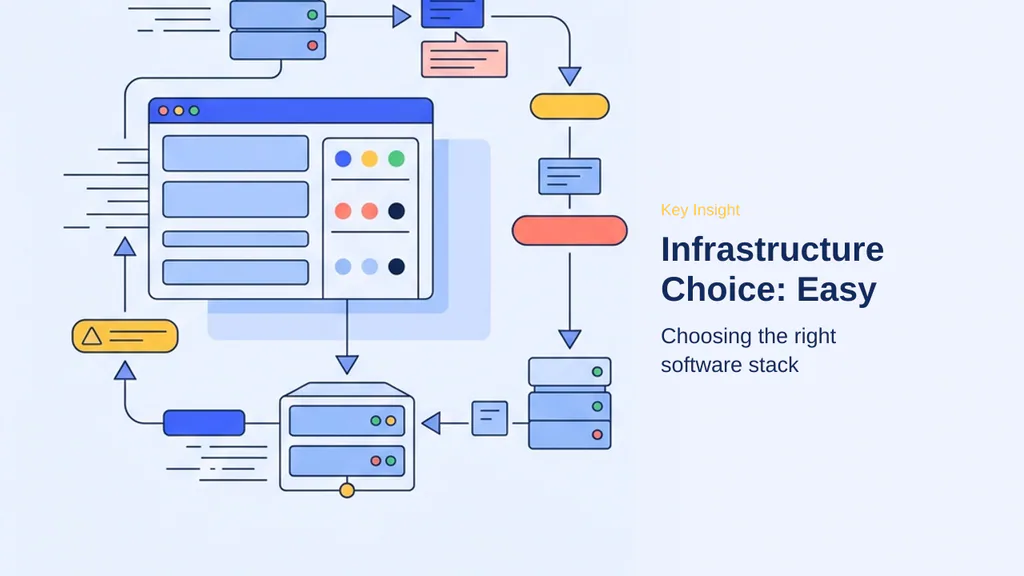
Choosing the right software stack directly impacts your server’s resource allocation and database efficiency. For WordPress sites delivering digital assets, minimizing database queries and avoiding heavy physical inventory tables is critical. Easy Digital Downloads is free on WordPress.org, offering a lightweight alternative to heavier e-commerce frameworks. This plugin focuses entirely on virtual delivery, which reduces database overhead and keeps page load speeds low. I look at infrastructure through the lens of latency and resource conservation; running a lean plugin prevents the CPU spikes associated with calculating shipping rates or managing physical warehouse stock. By avoiding unnecessary database tables, you ensure that your server responds quickly to incoming HTTP requests.
However, the financial efficiency of your infrastructure changes as transaction volume scales. The free version of the plugin imposes a 3% platform fee on Stripe transactions. While this fee structure is acceptable for testing or low-volume launches, it becomes a performance bottleneck for your margins over time. Upgrading to a premium license is cheaper once the store makes over $3,300 per year. Removing this platform fee allows you to reinvest capital into faster hosting or content delivery networks. The installation process follows standard WordPress plugin procedures, but activating a premium license key immediately removes the transaction fee, optimizing your financial routing. Upgrading early prevents unnecessary transaction margin loss when transaction volume scales.
Setup Wizard Optimization
Upon activation, the plugin launches an automated setup wizard. The setup wizard has five screens: Business, Payment Methods, Emails, Tools, and Products. While automated setups are convenient, they often run background scripts or write default options to the database that you may need to refactor later. To maintain a clean database and ensure optimal configuration, it is best to complete only the first screen and skip the subsequent steps. This prevents the plugin from installing default payment gateways or placeholder products that you will have to delete manually later, keeping your database tables clean from the start.
On the first screen, you configure your basic business details, including your store name, country, and default currency. This information is essential because it establishes the baseline tax calculations and localization settings. Once you save these initial business details, click the option to skip the remaining wizard screens. Skipping these steps prevents the automatic creation of unnecessary pages or default payment configurations that can clutter your database. Instead, configuring payment gateways, email routing, and file delivery manually ensures that you maintain full control over your server’s external connections and API calls. This manual approach prevents unnecessary database bloat and allows you to optimize each integration for maximum performance. Skip the wizard to maintain a clean database footprint.
Payment Gateway Routing: Stripe and PayPal Integration

Route and region matter if payment gateways are not optimized for transaction speed. When a visitor clicks the purchase button, the network path between the user’s browser, the WordPress origin server, and the payment processor’s API determines whether the transaction succeeds or times out. Minimizing database writes during this handshake keeps the server responsive. To prevent latency spikes during peak traffic, the store must route transactions through optimized payment gateways that offload processing overhead from the local database.
Primary Stripe Connection
Stripe serves as the primary gateway for processing credit cards, Apple Pay, and Google Pay. Connecting the gateway requires navigating to the payments settings in the WordPress dashboard and authorizing the link directly with the processor. This connection routes checkout requests directly to the payment processor’s infrastructure, ensuring that the local server does not have to handle the heavy cryptographic load of processing raw credit card numbers.
From a performance and security standpoint, this routing architecture minimizes local server load. Stripe collects card details on their servers, meaning the WordPress site only receives a token confirming the payment status. Because the local database never processes or stores raw cardholder data, the server avoids the heavy processing overhead associated with local encryption and strict PCI compliance audits. This tokenized transaction security ensures that even if the WordPress database is compromised, no sensitive financial data is exposed. However, the store owner must account for transaction costs. The Stripe standard fee is 2.9% plus 30 cents in the US. Minimizing additional platform fees by managing licenses correctly ensures these transaction costs do not erode profit margins.
Secondary PayPal Configuration
While direct card processing handles the majority of transactions, offering an alternative payment route prevents friction at checkout. Adding PayPal as a secondary gateway accommodates customers who prefer using their existing account balances. Some buyers will abandon the checkout flow entirely if they do not see a familiar PayPal logo, making this secondary route critical for conversion rates.
To route payments through this gateway, PayPal requires a free business account. Personal accounts must be upgraded within the PayPal dashboard before initiating the connection to ensure the API can process automated payment notifications. Once the business account is active, the administrator links the gateway via the settings panel, authorizing the connection through a secure popup window. This connection allows the store to receive instant payment notifications, which trigger the automated delivery of the digital files.
To establish this dual-gateway routing, follow these steps:
- Navigate to the payments settings tab within the digital store dashboard to access the gateway configuration.
- Toggle the active gateway switches for both Stripe and PayPal to enable them on the frontend checkout page.
- Access the Stripe configuration tab and click the connection button to link the merchant account.
- Access the PayPal configuration tab to authorize the verified business account through the secure popup.
- Save the gateway settings to activate the checkout routes and begin processing test transactions.
This dual-gateway setup ensures that the transaction engine remains lightweight. By offloading card processing to external APIs, the WordPress server preserves its resources for delivering the actual digital assets.
Server Security: Download Limits and Link Expiration

Protecting digital assets from unauthorized distribution is a critical step in maintaining server stability and protecting revenue. When a digital file is purchased, the delivery mechanism must balance user convenience with strict resource protection. Unrestricted access to download URLs exposes the host server to bandwidth exhaustion and hotlinking vulnerabilities. Easy Digital Downloads addresses this by providing built-in configuration options to restrict access directly at the database and application levels.
The network angle is securing the download path once payment is verified. By limiting the availability of the generated download links, you prevent link sharing on public forums and reduce the risk of automated scrapers draining server resources. These security settings are managed within the WordPress dashboard under the miscellaneous settings tab, allowing you to establish rules that protect your files without requiring complex server-level firewall configurations.
File Download Limits
A primary defense against digital piracy is restricting the number of times a unique link can be accessed. The file download limit controls how many times a customer can download a file from their unique generated URL. Without a cap, a single purchased link can be shared publicly, allowing unlimited users to download the asset directly from your host, which spikes CPU usage and bandwidth costs. This can lead to severe server latency for other visitors trying to access your storefront.
For most digital stores, setting a download limit of three or four attempts is recommended. This range provides a safety net for legitimate buyers who might experience interrupted connections, browser crashes, or device sync issues during their initial attempt. It prevents link abuse while keeping support requests to a minimum. To configure this, administrators navigate to the File Downloads sub-tab under the miscellaneous settings and enter the chosen value in the File Download Limit field.
Setting this value ensures that even if a link is leaked, the damage to your server resources and product exclusivity is strictly capped. The database tracks the download count associated with each unique token, blocking further requests once the threshold is reached.
Link Expiration Windows
In addition to limiting the number of downloads, restricting the lifespan of the download link adds another layer of security. The download link expiration setting defines the timeframe during which the link remains active. Once this window closes, the link becomes invalid, and any attempt to access the file returns an error page. This prevents old links from being indexed by search engines or shared weeks after the initial purchase.
By default, the plugin configures this link expiration window to 24 hours. This default duration is generally sufficient for the vast majority of customers to complete their download, even when dealing with slow network connections or delayed email delivery. However, store administrators can adjust this window based on the size of the files and the target audience’s typical download behavior. If you sell exceptionally large files, extending this window slightly may prevent customer frustration.
Implementing these restrictions helps maintain optimal server performance by:
- Preventing long-term link sharing on public forums and coupon sites.
- Reducing concurrent connections to the host server from stale links.
- Encouraging immediate consumption of the digital product, which reduces customer support latency.
- Minimizing the window of opportunity for malicious scrapers to target active download paths.
Once these security parameters are active, the server is protected against basic bandwidth abuse. Performance gets practical when setting up the actual product metadata and assets.
Product Creation: Metadata and Asset Mockups
Title and Description SEO
When building a high-performance digital storefront, the way you structure your product pages directly impacts both search visibility and user experience. In the Easy Digital Downloads ecosystem, every product in EDD is called a Download. To create one, navigate to the downloads section in your WordPress dashboard and click the add new button. This action opens an interface that utilizes the native WordPress block editor, allowing you to add the title and description in the block editor without introducing external page builder bloat that could degrade your page load speeds. By avoiding heavy page builders for simple product layouts, you minimize the DOM depth and keep the initial HTML payload small, which is a critical factor for Core Web Vitals. This clean structure ensures that the browser can parse the document object model rapidly, leading to faster Time to Interactive (TTI) metrics.
From a network and performance perspective, keeping your product pages lightweight is critical. When search engine crawlers index your site, they prioritize fast-loading, structured content. Your product title should be clear, descriptive, and contain target keywords that users actually search for, such as specifying the file format in the title itself. The description area serves as your primary sales copy and SEO content zone. You should clearly explain what the digital asset is, the specific problem it solves, who the target audience is, and the exact file formats included in the package. Breaking this text into short, readable paragraphs ensures that both human visitors and search engine bots can parse the page efficiently before deciding to initiate a transaction.
Note: You must configure these metadata fields directly within the block editor to ensure proper schema markup generation, which helps search engines display rich snippets for your digital products.
Visual Mockups and Previews
Because digital products lack a physical form, visitors cannot touch or inspect them before purchasing. This makes visual representation critical for conversions. However, unoptimized images are the primary cause of slow page loads and high bounce rates. To balance visual appeal with performance, you must create optimized mockups that represent the digital asset accurately without overloading the user’s browser. Heavy, uncompressed PNG files can easily delay the Largest Contentful Paint (LCP) metric, causing visitors to abandon the page before the checkout button even renders.
The type of mockup you use should match the specific medium of your digital asset. For instance, you should use 3D book cover mockups for eBooks to give them a tangible feel. If you are selling software or website configurations, use screenshots for templates to show the product in a real-world environment. For asset bundles, use thumbnail grids for photo bundles to showcase the variety and volume of the files included. Each of these preview images must be compressed and scaled to the exact display dimensions before upload. Offloading these assets to a content delivery network or using modern image formats like WebP ensures that your product pages remain highly responsive, keeping latency low even for mobile visitors on cellular networks. This optimization prevents large image payloads from blocking the main thread during page rendering.
Pricing Architecture: Single and Variable Licenses
Route and region matter if pricing tiers are not structured to maximize order value. When configuring a digital storefront, the database schema handles pricing lookups during the checkout sequence. Minimizing database overhead is critical for maintaining low latency during high-traffic launch windows. Easy Digital Downloads stores pricing configurations as post metadata, meaning every price check requires a database query. Choosing the right pricing architecture directly impacts both your average order value and your server’s database performance.
Flat Rate Pricing
For simple digital assets, a single flat-rate price is the most straightforward configuration. To set this up, navigate to the Download Details section on the product creation page. You will find a simple Price field where you can input a single numerical value. From a database perspective, this is highly efficient. The system stores a single meta key and value, which requires minimal processing power to retrieve when a visitor adds the item to their cart.
This setup works well for standalone items like single eBooks or individual stock photos. However, relying solely on flat-rate pricing can limit your revenue potential. If a customer is willing to pay more for extended usage rights, a single price point fails to capture that additional value. While it keeps the database queries clean and fast, it misses the opportunity to segment your audience based on their specific needs and budget constraints. Furthermore, a flat-rate structure simplifies the API payload sent to gateways like Stripe or PayPal, as there are no complex calculations or line items to pass through the network during the transaction phase. This simplicity minimizes the risk of gateway communication timeouts, ensuring a fast checkout experience.
Variable Tier Setup
To maximize revenue without adding unnecessary plugins, you can implement variable pricing. Variable pricing is excellent for selling things like personal versus commercial licenses, or offering starter, standard, and pro bundles of the same product. This strategy leverages price anchoring, encouraging buyers to opt for higher-tier options. By maximizing average order value, you extract more revenue from the same volume of traffic.
To configure this, enable the ‘Create price variations for this download’ slider in Download Details. Activating this slider changes the interface, exposing a new Prices tab. Here, you can define multiple pricing tiers by assigning a unique name and price to each variation. For example, you might create a “Personal License” at a lower price point and a “Commercial License” at a higher tier. You can add as many variations as your business model requires by clicking the Add Variation button.
From a performance standpoint, variable pricing increases the complexity of the database queries. Instead of retrieving a single value, the system must query serialized arrays containing the names and prices of all active variations. While modern hosting environments handle this easily, keeping your variations clean and removing unused tiers prevents database bloat. On the frontend, these variations render as radio buttons or dropdown menus, which requires minimal CSS and JavaScript, keeping the page weight low. This structural setup ensures that your pricing logic remains fast and responsive, even during peak traffic periods when multiple customers are checking out simultaneously. Thus, optimizing database queries prevents server bottlenecks before the customer is redirected to the payment gateway. The network angle is where the physical file is stored and how it is delivered to the client.
Storage and Delivery: Local Uploads vs External Cloud

File delivery is the core of any digital storefront. Where you store your assets directly impacts server CPU usage, memory consumption, and download speeds. Choosing between local hosting and external cloud storage requires analyzing your file sizes and server capabilities. The network angle is critical here: serving files directly from your web server can quickly saturate your bandwidth and lead to a poor user experience.
Local Server Limits
Easy Digital Downloads integrates directly with the WordPress media library. This native connection allows you to upload a wide variety of file formats. The plugin supports standard formats like PDF, EPUB, ZIP, MP3, WAV, MP4, MOV, JPG, PNG, DOC, XLS, PSD, and AI. For small files, local storage is simple and requires no external configuration. You simply upload the file, and EDD handles the rest.
However, local hosting introduces significant infrastructure challenges. Most managed hosts cap local uploads between 64MB and 256MB by default. Attempting to upload files larger than these limits results in server timeout errors. Furthermore, serving large files directly from your web server consumes valuable bandwidth. When multiple users download large files simultaneously, it exhausts PHP workers and slows down the entire website for other visitors. This latency can cause checkout pages to hang, leading to abandoned carts.
If you choose to use local storage, you must monitor your server resources closely. Local storage works best for lightweight assets like eBooks or small documents. For larger media files, relying on your web host’s local disk space is a recipe for high latency and failed transactions. You must ensure your hosting plan has sufficient disk I/O to handle concurrent read requests without bottlenecking the database.
External S3 and Dropbox Routing
To bypass local server limitations and optimize download speeds, you can offload your files to external cloud storage. Large files can be hosted on Amazon S3 or Dropbox and linked in EDD. Instead of uploading the file to your WordPress media library, you upload it to your cloud provider and paste the direct URL into the file URL field in the download configuration. EDD treats these external links just like media library files, ensuring secure download delivery.
This approach shifts the bandwidth burden away from your web server. When a customer purchases a product, EDD generates a secure, expiring link that points directly to the cloud storage provider. The customer downloads the file directly from the cloud infrastructure, preserving your server’s resources for processing transactions. This architecture is essential for maintaining high performance under load.
Using external storage offers several distinct advantages for performance-focused stores:
- Bypasses default PHP upload limits on managed hosting.
- Reduces web server CPU and memory usage during downloads.
- Leverages global content delivery networks for faster file transfers.
- Prevents download interruptions caused by local server timeouts.
- Secures files using cloud-level access control policies.
Routing downloads through Amazon S3 or Dropbox ensures that your site remains fast and responsive, even during peak traffic periods. It is a critical step for stores selling high-definition video, audio bundles, or large software archives. Route and region matter when configuring these external links, as choosing a bucket location close to your primary customer base further minimizes download latency. Offloading files prevents server crashes during high-traffic product launches.
Frontend Rendering: Blocks and Shortcodes
Performance gets practical when rendering these products on the frontend for visitors. The way your WordPress site displays digital products directly impacts page load speed, mobile responsiveness, and overall conversion rates. When a visitor lands on your shop page, the server must query the database, retrieve the product metadata, and render the HTML. If this process is inefficient, it introduces unnecessary latency that can drive potential buyers away before they even see your products. Choosing the right rendering method is crucial for maintaining a lightweight footprint.
EDD Products Block
The native block editor in WordPress provides a highly optimized way to display your digital products. By using the native EDD Products block, you bypass the heavy JavaScript payloads and database overhead often associated with third-party layout plugins. The EDD Products block allows displaying items in columns, showing featured images, prices, and excerpts. This native block outputs clean, semantic HTML that integrates directly with your theme’s stylesheet, ensuring that your server does not have to process redundant style sheets.
From a performance perspective, rendering products through the native block editor helps minimize DOM depth. A shallow DOM tree means the browser can parse and paint the page much faster, especially on low-powered mobile devices. You can configure the block to display products in a two, three, or four-column grid depending on your catalog size. Enabling the product excerpt is highly recommended, as it provides immediate context to the visitor without requiring them to click through to the single product page. This reduces the total number of page views required for a user to make a purchase decision, saving server bandwidth and reducing database queries. Additionally, the block handles image source sets automatically. This means the browser only downloads the specific image size required for the visitor’s screen resolution, preventing the delivery of oversized images that waste bandwidth. Because the block leverages core WordPress rendering APIs, it works seamlessly with object caching mechanisms, allowing your server to deliver cached product grids instantly to subsequent visitors.
Page Builder Shortcode Integration
While the native block editor is ideal for performance, many intermediate users rely on page builders to design custom landing pages or complex layouts. If you use page builders like Elementor, Divi, or Beaver Builder, you might find that native blocks do not align perfectly with your custom grid systems. To bridge this gap without sacrificing site speed, you can use the [downloads] shortcode. This shortcode acts as a direct query interface, pulling product data straight from the database and rendering it within the page builder’s container.
Using the shortcode allows you to bypass the proprietary product widgets built into some page builders, which often introduce extra CSS files and JavaScript libraries. Instead, the shortcode relies on the core styling of Easy Digital Downloads, helping to avoid heavy asset loading on your landing pages. When configuring the shortcode, you can append parameters to limit the number of products, define specific categories, or order the items by date or price. This level of control ensures that you only query the exact data needed for that specific page, preventing database bottlenecks. When a page builder loads, it typically queues multiple assets. By using the shortcode instead of a heavy visual widget, you reduce the number of HTTP requests. This is particularly important for mobile users on cellular networks where high latency can delay the rendering of product grids.
However, page builders naturally introduce some layout bloat. To mitigate this, ensure that your shortcode is placed inside a clean container with minimal nested sections. This practice helps render clean HTML and keeps the page weight low. By combining the flexibility of the shortcode with a disciplined approach to page builder layouts, you can create high-converting product showcases that load quickly across all geographical regions.
SMTP Routing: Email Delivery and WP Mail SMTP
When a transaction completes, the server must immediately deliver the digital asset to the buyer. Easy Digital Downloads automatically emails purchase receipts containing secure download links directly to the customer. This transactional email is the primary delivery mechanism for your digital products, making its delivery reliability critical to your store’s operations. If this email fails to arrive, the customer experience breaks down immediately, leading to support requests and potential refund demands. From a network perspective, the delivery path of these emails is just as important as the download speed of the files themselves.
By default, WordPress attempts to send these transactional messages using the built-in PHP mail function. This default routing is highly unreliable. Because PHP mail does not use proper authentication protocols, major email providers like Gmail, Outlook, and Yahoo frequently flag these unauthenticated emails as spam or block them entirely. Sending mail from a web server IP address that lacks proper SPF, DKIM, and DMARC records is a direct route to delivery failure. Your server’s IP address may also share a bad reputation with other sites on a shared hosting plan, compounding the deliverability issue.
Warning: Relying on default PHP mail routing will likely cause your purchase receipts to land in spam folders, preventing customers from accessing their downloads.
To bypass unreliable routing, you must configure a dedicated SMTP plugin. WP Mail SMTP solves this issue by routing your WordPress emails through established, secure email delivery services. Instead of relying on the local web server to send mail, the plugin establishes a connection to external providers such as Gmail, SendLayer, or Microsoft 365. These platforms maintain highly optimized mail servers and strong IP reputations, ensuring that your transactional messages bypass spam filters and land directly in the customer’s inbox.
Configuring the email content itself is the next step in optimizing this delivery pipeline. In your WordPress dashboard, navigate to Downloads » Emails, hover over the Purchase Receipt email, and select Edit. The default template is functional but generic. You can customize the message body using merge tags like {name} and {download_list} to personalize the receipt. Adding a clear troubleshooting line directly below the download link helps manage customer expectations. For instance, instructing buyers to reply directly to the email if they encounter download issues provides an immediate fallback. Additionally, the footer of the purchase receipt is a highly engaged space; you can use it to invite customers to join a newsletter or community platform while their interest is at its peak.
Once you have customized the template, use the Send Test button within the email settings. This utility sends a sample message to your inbox, allowing you to verify the formatting and confirm that the underlying SMTP routing is functioning correctly. If the test email arrives promptly and bypasses the spam folder, your transactional email system is ready for production traffic. Route and region matter if transactional emails fail to reach the customer inbox.
Latency and Gateway Testing: Sandbox Checkout Verification
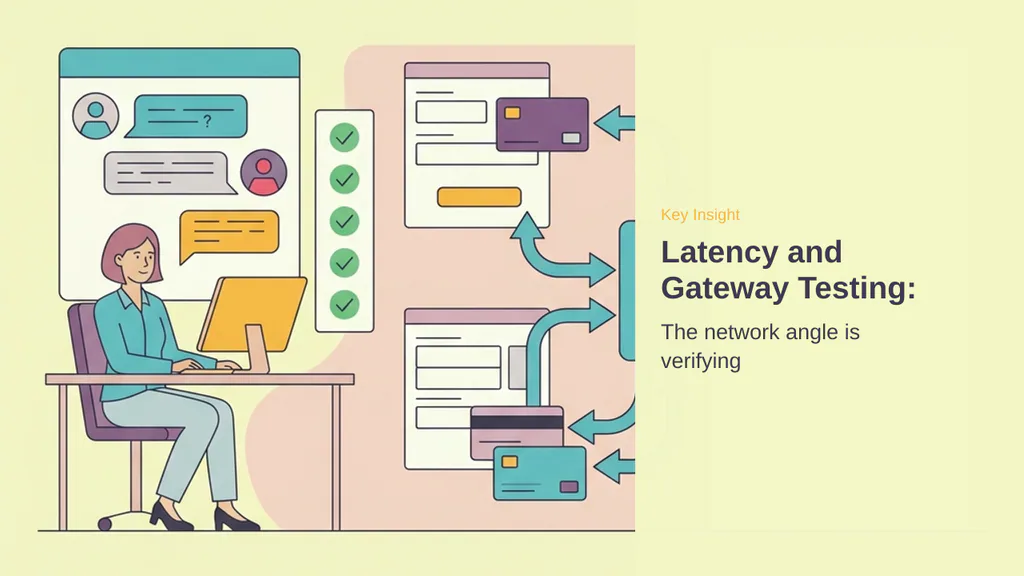
The network angle is verifying the entire checkout pipeline before going live. Payment processing introduces a critical latency point in the user journey. When a customer clicks the purchase button, your WordPress server initiates an external API request to the payment gateway, waits for tokenization validation, writes the transaction to the database, and triggers transactional email routing. If any link in this chain suffers from high latency, the checkout page hangs, leading to cart abandonment. Before opening the store to live traffic, you must run sandbox transactions to verify that these network roundtrips execute efficiently. Resolving external DNS queries to Stripe’s API endpoints can add hundreds of milliseconds if your hosting provider’s DNS resolver is unoptimized. Testing these connections under simulated load helps identify routing bottlenecks early.
To begin testing without risking real capital, you must activate the built-in sandbox environment. Navigate to Downloads > Settings > Payments > General in your WordPress dashboard. Locate the toggle labeled Enable Test Mode and click it to activate. This configuration routes all transaction requests to the gateway sandbox endpoints rather than live production networks. It allows you to simulate the entire database write sequence and verify that your server handles the post-purchase redirect without timing out. This step is essential to ensure that your gateway configuration is correctly communicating with the local database tables.
Testing while logged in as an administrator can mask performance bottlenecks due to object caching and session privileges. To simulate a real customer, open a private or incognito browser window. This ensures you bypass active admin sessions and test the exact network path, cookie generation, and page rendering speeds that an external visitor experiences. It also prevents admin-only optimization bypasses from skewing your latency measurements. A clean session provides the most accurate representation of first-time visitor load times.
Navigate to your product page in the incognito window, add the download to your cart, and proceed to the checkout screen. When prompted for payment details, use the standard Stripe test card number: 4242 4242 4242 4242. You can enter any future expiration date and any three-digit CVC code to complete the form. Submit the transaction and monitor the network tab in your browser developer tools to observe the admin-ajax.php or REST API response times. This helps isolate whether latency originates from the payment gateway API or your local database write speeds. Pay close attention to the TTFB (Time to First Byte) during the checkout submission.
- Confirm the gateway tokenizes the card details without script errors.
- Verify the database registers the transaction status immediately.
- Check that the secure download link is generated with correct expiration parameters.
- Ensure the SMTP server dispatches the purchase receipt without delay.
- Deactivate test mode in the settings panel once verification succeeds.
Once the transaction completes, verify that the redirect to the success page is immediate. Slow database writes or unoptimized queries can delay this redirect, causing users to click the purchase button multiple times, which creates duplicate pending orders in your database. If the success page loads slowly, check your database performance, monitor the execution time of your payment gateway callbacks, and ensure your object cache is functioning correctly. After confirming the checkout flow and verifying that the purchase receipt arrives in your inbox, return to your dashboard and disable test mode to begin accepting live payments. Performance gets practical when scaling the store with optimization and tracking tools.
Optimization Stack: Analytics, SEO, and Lead Generation
Performance gets practical when the core transaction engine is stable, but scaling a digital storefront requires a highly optimized application stack. Adding plugins can introduce database overhead and slow down page rendering. To prevent performance degradation, each optimization tool must serve a specific, lightweight role in the stack. We focus on analytics, search visibility, and conversion recovery without overloading the server’s CPU or memory. Every database query and external script execution must be evaluated for its impact on page load times, especially during peak traffic periods when multiple users are downloading large files simultaneously. A bloated database can cause checkout bottlenecks, making lightweight integrations essential.
Search engine visibility directly impacts organic traffic volume. Using AIOSEO optimizes product pages and adds product schema, which helps search engines parse digital download metadata efficiently. Instead of relying on heavy, unoptimized database queries to generate metadata dynamically, structured schema provides search engines with pre-formatted product details. This reduces crawl overhead and improves search engine rankings. By structuring metadata correctly, you ensure that search crawlers index your digital downloads without triggering excessive server resource consumption or slowing down the frontend experience for human visitors. This keeps the server responsive even when search bots crawl the site heavily.
Tracking user behavior and transaction metrics is critical for identifying bottlenecks in the checkout funnel. MonsterInsights tracks top sellers and conversion rates inside WordPress, eliminating the need to manually query the database or load external analytics dashboards. By displaying these metrics directly in the admin area, store owners can monitor performance trends without executing complex SQL queries that could lock database tables during high-traffic periods. This integration keeps your analytics workflow streamlined and localized, reducing the need to load external scripts on the frontend. It provides clear visibility into which files generate the most traffic and sales.
Traffic that leaves without purchasing represents wasted bandwidth and lost revenue. OptinMonster recovers lost sales with exit-intent popups, triggering only when a user shows signs of leaving the page. Because the script executes client-side, it minimizes server-side processing. This ensures that recovery campaigns do not degrade the load times of active shoppers who are still navigating the checkout flow. Implementing this client-side logic prevents unnecessary server requests, keeping the critical checkout path clear of latency and ensuring that database connections remain available for processing payments. This targeted approach helps capture leads that would otherwise be lost forever.
For visitors who have already left the site, browser-based communication offers a low-latency re-engagement path. PushEngage handles browser push notifications and cart abandonment campaigns, sending targeted alerts directly to the user’s device. This offloads the communication overhead from the local WordPress mail server to external push service networks, preserving server resources for critical transactional tasks. By routing these notifications through external push networks, you avoid the delivery delays associated with local mail queues and ensure that your marketing efforts do not impact the core checkout experience. This keeps the local mail queue clear for immediate purchase receipts.
The network angle is complete when every layer of the storefront—from payment routing to marketing automation—operates with minimal latency. Balancing these optimization tools ensures the WordPress database remains responsive under load. Performance gets practical when scaling the store with optimization and tracking tools.
The network angle is critical when transitioning a digital store from a local staging environment to a live production server. A successful launch relies on the seamless integration of payment gateways, secure file delivery, and reliable email routing. By choosing a lightweight plugin infrastructure and skipping unnecessary database-heavy setup wizards, you preserve server resources for actual user transactions. Offloading credit card processing to Stripe and PayPal via tokenized transactions not only secures customer data but also minimizes the processing overhead on your WordPress host.
Route and region matter if your digital assets are large or if your target audience is globally distributed. Storing large files on external cloud platforms like Amazon S3 or Dropbox, rather than relying on local managed hosting storage, prevents server latency and bypasses upload limits. When combined with strict download limits and link expiration windows, this architecture protects your bandwidth from abuse while ensuring rapid file delivery.
Before opening your store to the public, verifying the entire transaction pipeline through sandbox testing is essential. Simulating purchases in an incognito window using test credentials confirms that database writes, payment handshakes, and transactional emails function correctly under real-world conditions. Once the core checkout flow is verified, integrating lightweight optimization tools for search engine visibility, analytics, and cart recovery will help scale operations without degrading page speed.
Maintaining a fast, secure, and responsive WordPress site requires continuous monitoring of these infrastructure layers. Prioritizing clean database queries, external file storage, and authenticated email routing creates a stable foundation for selling digital downloads. This performance-first approach ensures a reliable checkout experience that protects your assets and supports business growth.